Hello everyone ,
Today I am going to show you how you can publish a local website by using iis. To start we need to install IIS first.
1. Click on Start, than Run, and type appwiz.cpl, and than Click on OK

This will bring Add and Remove Programs Wizard
2. Now Click on Add/Remove Windows Components

This will bring Windows Components Wizard
3. Now find Internet Information Services (IIS), and put check mark before it
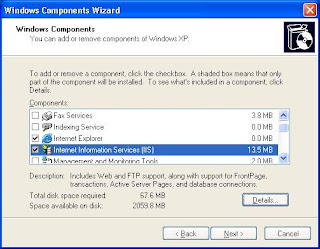
4. Click on Next
During Installing Windows might ask you to provide some files, see the picture below.

So just browse to I386 folder, there you will be able to find the necessary file.
Upon completion, you will see this message

We have now successfully installed IIS. Its time to configure it
5. Click on Start, than Run, and type inetmgr

This will open Internet Information Services (IIS)
6. Now expand PC name(Local computer), than expand Web sites
Now on the right hand side make sure that Dafault wide site status is Running
Also note the IP Address, if it is All assigned than you can open your website either by typing your IP or by 127.0.0.1

Now close IIS
7. Open Internet Explorer, and in the address bar type either your IP address, or 127.0.0.1

If you see a page like this, than its mean your Web site is configured and working fine.
Today I am going to show you how you can publish a local website by using iis. To start we need to install IIS first.
1. Click on Start, than Run, and type appwiz.cpl, and than Click on OK

This will bring Add and Remove Programs Wizard
2. Now Click on Add/Remove Windows Components

This will bring Windows Components Wizard
3. Now find Internet Information Services (IIS), and put check mark before it

4. Click on Next
During Installing Windows might ask you to provide some files, see the picture below.

So just browse to I386 folder, there you will be able to find the necessary file.
Upon completion, you will see this message

We have now successfully installed IIS. Its time to configure it
5. Click on Start, than Run, and type inetmgr

This will open Internet Information Services (IIS)
6. Now expand PC name(Local computer), than expand Web sites
Now on the right hand side make sure that Dafault wide site status is Running
Also note the IP Address, if it is All assigned than you can open your website either by typing your IP or by 127.0.0.1

Now close IIS
7. Open Internet Explorer, and in the address bar type either your IP address, or 127.0.0.1

If you see a page like this, than its mean your Web site is configured and working fine.