Wednesday, November 17, 2010

HOW TO INSTALL ACTIVE DIRECTORY ON WINDOWS SERVER 2008 R2

1. Go to run type dcpromo and press OK


After you press Ok, windows will start installing binaries, this may take some time


 2. When windows finished installing binaries. you would see a window like this, Click on Next


3. Click on Next


4. Put radio button on Create a new domain in a new forest, and than click on Next


 5. Now select a domain name like corp.contoso.com, in my case it is taqi.com, than click Next


After this windows will check your network to make sure that there is no domain name which you have selected.


6. Now Windows will assign you a NetBIOS name, but you can change it to whatever you want. Click on Next


 7. Now from the drop down menu select Windows server 2008 R2, and click on Next


8. Now put check mark on DNS Server, and than click on Next


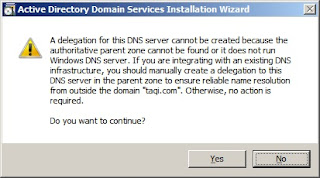
9. Click on Yes


 10. You can change the default folder for your Database, Log files and SYSVOL, to change a folder click on Browse. If you don't want to change the folder than click on Next


11. Now Choose a strong password, and click on Next


12. We are almost done, on this page you can verify all the settings, if you think there is something wrong than you may click on Back and can correct them. If every thing is OK, than click on Next


 After you click Next, the wizard will start installing Active Directory.

(THIS CAN TAKE SOME MINUTES SO BE PATIENTS)


13. Upon successfully installation of Active directory you will see this window, click on Finish
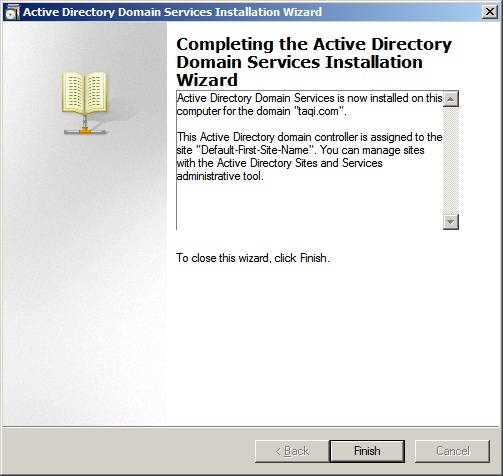

14. You will be required to restart you windows, Save all your work and than click on Restart Now


Now You have successfully installed Active Directory

:)

Tuesday, November 16, 2010

WINDOWS XP: CONTROL PANEL SHORTCUTS

If you frequently use components in control panel, you might have noticed that every time in order to open an application you first have to open control panel than the application


Do you want a shorter way to access all these components, without open control panel ??


If so, than this post will be very useful for you. As today I am going to share some shortcuts.


Component Name
Icon
Shortcut

Accessibility Option


access.cpl

Add New Hardware


 Hdwwiz.cpl

Add and Remove Program


appwiz.cpl

Date and Time Properties


Control timedate.cpl

Display properties


Control desk.cpl

Fonts


Fonts

Internet properties


Inetcpl.cpl

Joystick properties


Joy.cpl

Keyboard properties


Main.cpl keyboard

Modem properties


telephon.cpl

Mouse properties


Main.cpl

Network properties


Ncpa.cpl

Regional Settings


Intl.cpl

Scanner and Cameras


Wiaacmgr.exe

Sound properties


Mmsys.cpl

System Properties


Sysdm.cpl

Monday, November 15, 2010

PAGEFILE : HOW TO DISABLE PAGE FILE

1. Go to run and type sysdm.cpl, and press OK


2. Now go to Adcance tab


3. Now Under Performance, Click on Setting


4. Now go to Advance tab
 

5. Under Virtual Memory click on Change


6. Now put radio button on No paging file, than click on Set, and than Click on OK


You will be required to restart your windows for the changes to take effect


Now You have Successfully disable Page file :)

Sunday, November 14, 2010

FTP: HOW TO UPLOAD CONTENTS ON FTP SERVER

1. Goto Run and type inetmgr and press OK


2. Now Expand local Computer, than expand FTP Sites, than right click on Default FTP Site and click on properties


You Should see the window like Below

3. Go to Home Directory tab


As you can see the default directory is c:\inetpub\ftproot

you can either put your contents in that directory, or you can manually choose a directory by clicking on Browse button.

4. Click on Browse to select directory


4. After you have choose a directory Click on OK

YOU ARE DONE :)

Friday, November 12, 2010

HOW TO INSTALL FTP ON WINDOWS XP

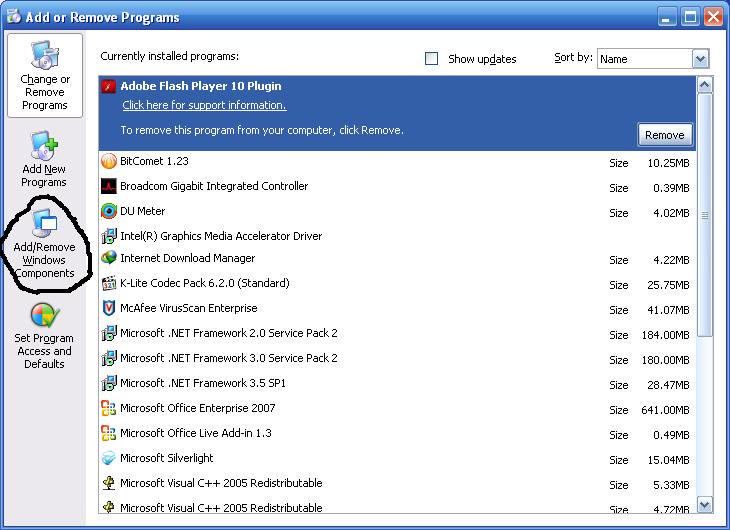
1. Goto Start click on Run and type appwiz.cpl and press OK


2. Now click on Add/Remove Windows components


3.  Now double click on Internet Information Service (IIS), this will open IIS components.


4. Now put check mark before File Transfer Protocol (FTP) Service.

(When you put check mark on FTP, windows will automatically put check mark on Common Files and Internet Information Services Snap-In. This is because these components are essential for FTP)


5. Click On OK and than Next.


After you click on Next, windows will start installing FTP.


During Installing Windows might ask you to provide some files, see the picture below.


So just browse to I386 folder, there you will be able to find the necessary file.

Upon completion, you should see like this, Click on Finish


Now You have successfully Installed FTP on your computer.

:)